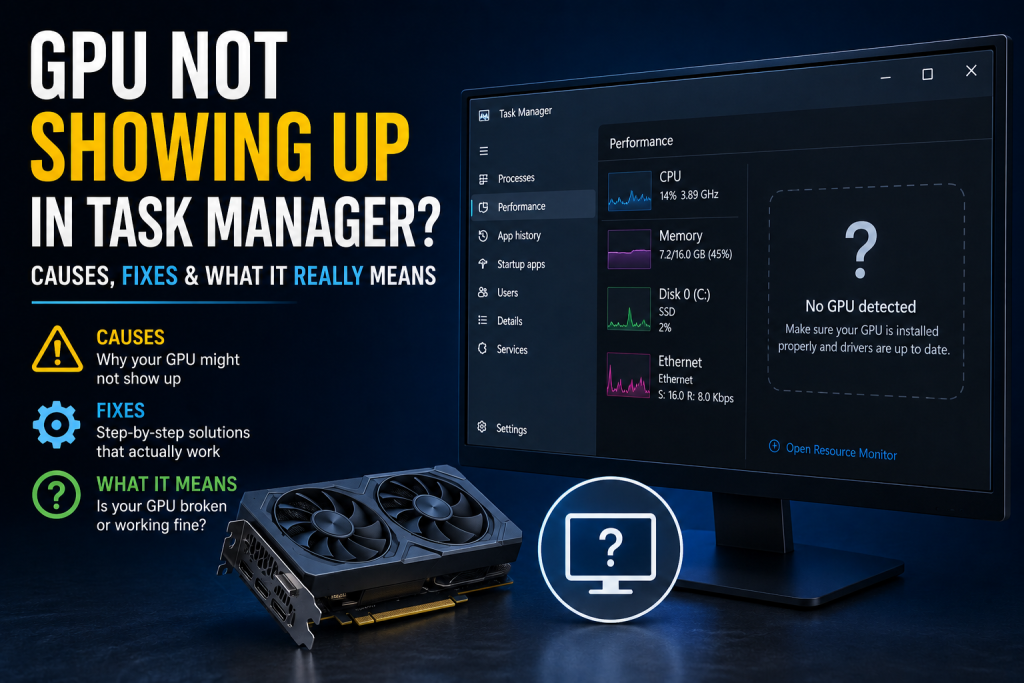
If you are experiencing the issue of your GPU not showing up, and you open Task Manager to check your GPU performance but it does not appear, do not worry. This is a common issue among gamers, video editors, and machine learning professionals who rely on dedicated GPU processing.
In this step-by-step diagnostic guide, you will learn why your GPU may not appear in Task Manager, how to restore its visibility, and how to verify whether your system is using your graphics processing unit properly. Whether you are troubleshooting integrated graphics or a multi-GPU system, these solutions will help you identify and resolve the problem.
Common Causes of GPU Not Showing Up in Task Manager
When a dedicated graphics processing unit goes undetected, the cause usually involves software configuration, drivers, or hardware connections.
- Outdated or Corrupted GPU Drivers: Incompatible or corrupted drivers can prevent Windows from communicating properly with your graphics hardware.
- Disabled GPU Settings in BIOS: Your motherboard firmware may disable the dedicated GPU or prioritize integrated graphics.
- Incompatible Windows Updates: Certain Windows updates can introduce driver compatibility issues that affect GPU detection.
- Faulty Physical PCIe Installation: If a desktop graphics card is not seated correctly in the motherboard’s PCIe slot, the system may fail to detect it.
- Integrated Graphics Priority: Some laptops and desktop systems prioritize integrated graphics to reduce power consumption. This does not necessarily mean the dedicated GPU is missing or faulty.
What It Means When Your GPU Fails to Appear
When your GPU does not appear in Task Manager, it does not automatically mean the hardware has failed. In many cases, the graphics processor may still be functional but not detected correctly because of driver issues, disabled devices, or hardware connection problems.
A missing GPU entry may indicate one of the following system conditions:
- The system is using integrated graphics instead of the dedicated GPU.
- Windows cannot communicate correctly with the graphics driver.
- The graphics device is disabled or experiencing a driver error.
- The dedicated GPU is not being detected because of a hardware or power connection problem.
How to Check GPU Information in Task Manager
Before attempting advanced repairs, make sure you are checking the correct section of Task Manager.
- Right-click the Windows taskbar and select Task Manager.
- Click the Performance tab in the sidebar.
- Look for GPU 0, GPU 1, or other GPU entries in the component list.
- If you cannot find a GPU entry, open Device Manager and check the Display adapters section.
- In Task Manager, open the Details tab, right-click a column heading, and select Select columns.
- Enable GPU and GPU engine to monitor GPU activity for individual processes.
If your graphics processor remains missing, continue with the troubleshooting steps below.
How to Fix a GPU Not Showing in Task Manager
Follow these troubleshooting methods in order, starting with the simplest solutions.
1. Reinstall Your GPU Drivers
Outdated or corrupted graphics drivers can prevent Windows from detecting your GPU correctly.
Visit the official website of your graphics card manufacturer, such as NVIDIA, AMD, or Intel, and download the appropriate driver for your exact GPU model.
If a normal driver installation does not resolve the issue, you can consider using Display Driver Uninstaller (DDU) in Windows Safe Mode to remove existing graphics drivers before installing a fresh copy.
Restart your computer after installation and check Task Manager again.
2. Check Your Graphics Card Settings in BIOS/UEFI
Your system’s BIOS or UEFI settings may affect which graphics adapter is initialized during startup.
- Restart your computer.
- Press the appropriate BIOS key, commonly Delete, F2, or F10, during startup.
- Look for settings such as Primary Display, Initial Display Output, or Integrated Graphics.
- If your desktop system has a dedicated GPU, check whether the PCIe graphics option is enabled.
The exact setting names vary by motherboard. Do not change unfamiliar settings, and remember that some laptops manage graphics selection automatically.
Save any appropriate changes and restart your system.
3. Check Recent Windows Updates
If your GPU disappeared after a Windows update, a driver compatibility issue may be responsible.
- Open Settings.
- Navigate to Windows Update and review your update history.
- Check whether a recent update coincides with the beginning of the problem.
- If necessary, consider rolling back the graphics driver through Device Manager or uninstalling a confirmed problematic Windows update.
Before removing updates, create a backup or restore point where possible. Avoid uninstalling security updates without a clear reason.
4. Inspect Your Graphics Card and Power Connections
If you are using a desktop computer, a loose graphics card or power connector can prevent proper detection.
- Shut down your computer completely.
- Switch off the power supply and unplug the power cable.
- Open the case and check whether the graphics card is seated correctly in its PCIe slot.
- Inspect the GPU’s power connectors and make sure they are securely attached.
- If you are not comfortable handling internal hardware, ask a qualified technician for assistance.
Never reseat a graphics card while the computer is powered on. If you have a laptop, do not attempt to remove its internal GPU.
5. Check Windows Display Settings
Windows may be using integrated graphics to drive your display, especially on systems with both integrated and dedicated GPUs.
- Right-click your desktop and select Display settings.
- Open Advanced display.
- Review the display information to identify the graphics adapter currently connected to your monitor.
- If you have a desktop PC and your monitor is connected to the motherboard instead of the dedicated GPU, shut down the computer and connect the display cable to the graphics card’s output.
Keep in mind that a GPU can still be detected even when it is not directly driving the display.
Advanced Solutions for Undetected Graphics Hardware
If the basic troubleshooting methods do not work, use these additional diagnostic tools to investigate the issue.
1. Scan for Hardware Changes in Device Manager
Device Manager can help Windows detect hardware that is not currently listed.
- Press Win + X and select Device Manager.
- Expand Display adapters.
- Click Action in the top menu.
- Select Scan for hardware changes.
- If your GPU appears with a warning symbol, open its properties and review the device status and error code.
If the device is disabled, right-click it and select Enable device, provided that option is available.
2. Check GPU Information Using System Information
Windows System Information provides details about the graphics hardware detected by the operating system.
- Press Win + R.
- Type
msinfo32and press Enter. - Expand Components.
- Select Display.
- Review the available graphics adapter information.
If the GPU is listed here but missing from Task Manager, the problem may involve driver support or Task Manager reporting rather than complete hardware failure.
3. Use Dedicated GPU Monitoring Tools
Tools such as GPU-Z and HWiNFO can provide additional information about your graphics hardware.
Download these utilities from their official websites and check whether they detect your GPU.
If a monitoring tool detects the graphics card but Task Manager does not, investigate Windows version compatibility, graphics drivers, and Task Manager reporting before assuming that the GPU is faulty.
Additional Steps to Prevent GPU Detection Problems
After restoring GPU detection, follow these practices to reduce the risk of similar problems in the future.
- Keep Graphics Drivers Updated: Install compatible drivers from the official manufacturer rather than relying on unverified downloads.
- Avoid Conflicting Overclocking Software: Remove outdated tuning utilities that cause driver conflicts or system instability.
- Check Hardware Connections: Periodically inspect desktop GPU power connections and ensure the card is securely installed.
- Create a Windows Restore Point: A restore point can help you recover from certain driver or system configuration problems.
- Monitor GPU Health: Use reliable diagnostic tools to check GPU temperature, utilization, and hardware status.
Changing your Windows power profile alone will not necessarily make a missing GPU appear in Task Manager. Focus on detection, driver compatibility, and hardware connections first.
Conclusion
If your GPU is not showing up in Task Manager, the problem may be related to outdated drivers, Windows configuration, BIOS settings, or hardware connections. A missing GPU entry does not automatically indicate hardware failure, so it is important to diagnose the issue before replacing any components.
Start by checking Device Manager, updating or reinstalling your graphics driver, and reviewing recent system changes. If you are using a desktop computer, inspect the graphics card and its power connections safely.
If you are building a deep learning system or an on-premises AI cluster with multiple graphics cards, read our guide on Local LLM Multiple GPU Setup to learn more about configuring and optimizing multi-GPU workloads.